Hey there,
When you're tracking both your own content and competitor accounts, your analytics can get messy. Since launching viral.app, we've heard from many users who track competitors alongside their own accounts—but their engagement metrics end up mixed together, making it hard to see how your content is actually performing.
Today we're releasing Competitor Tracking - a simple way to separate your internal content from competitor content across all your analytics.
tl;dr
- Mark any tracked account as a competitor (single checkbox or bulk action)
- Toggle between Internal and Competitor views across all analytics
- Overview charts, video metrics, and exports all respect your filter
- Foundation for deeper competitive analysis features
Setting up competitor tracking
For existing tracked accounts
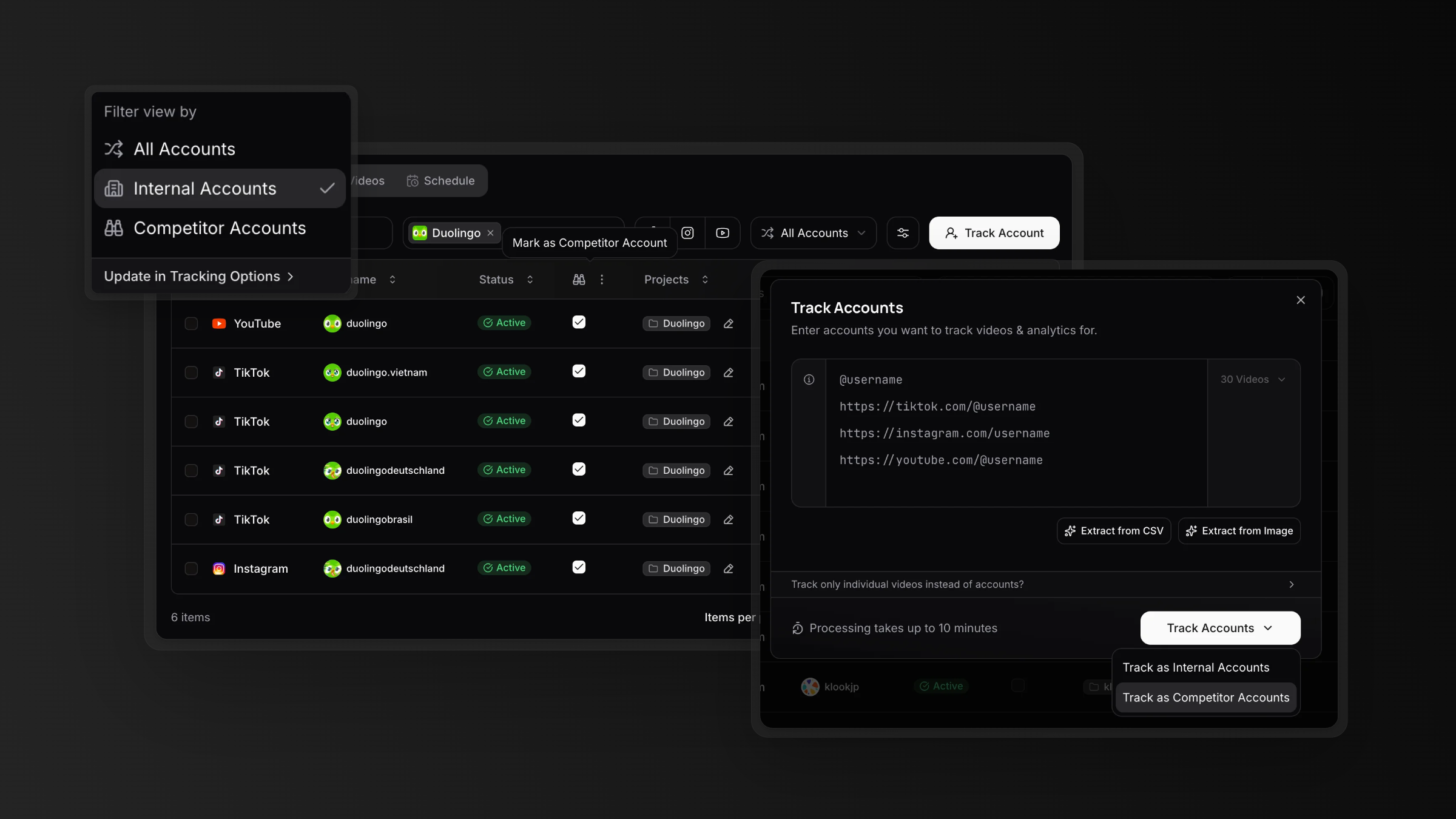
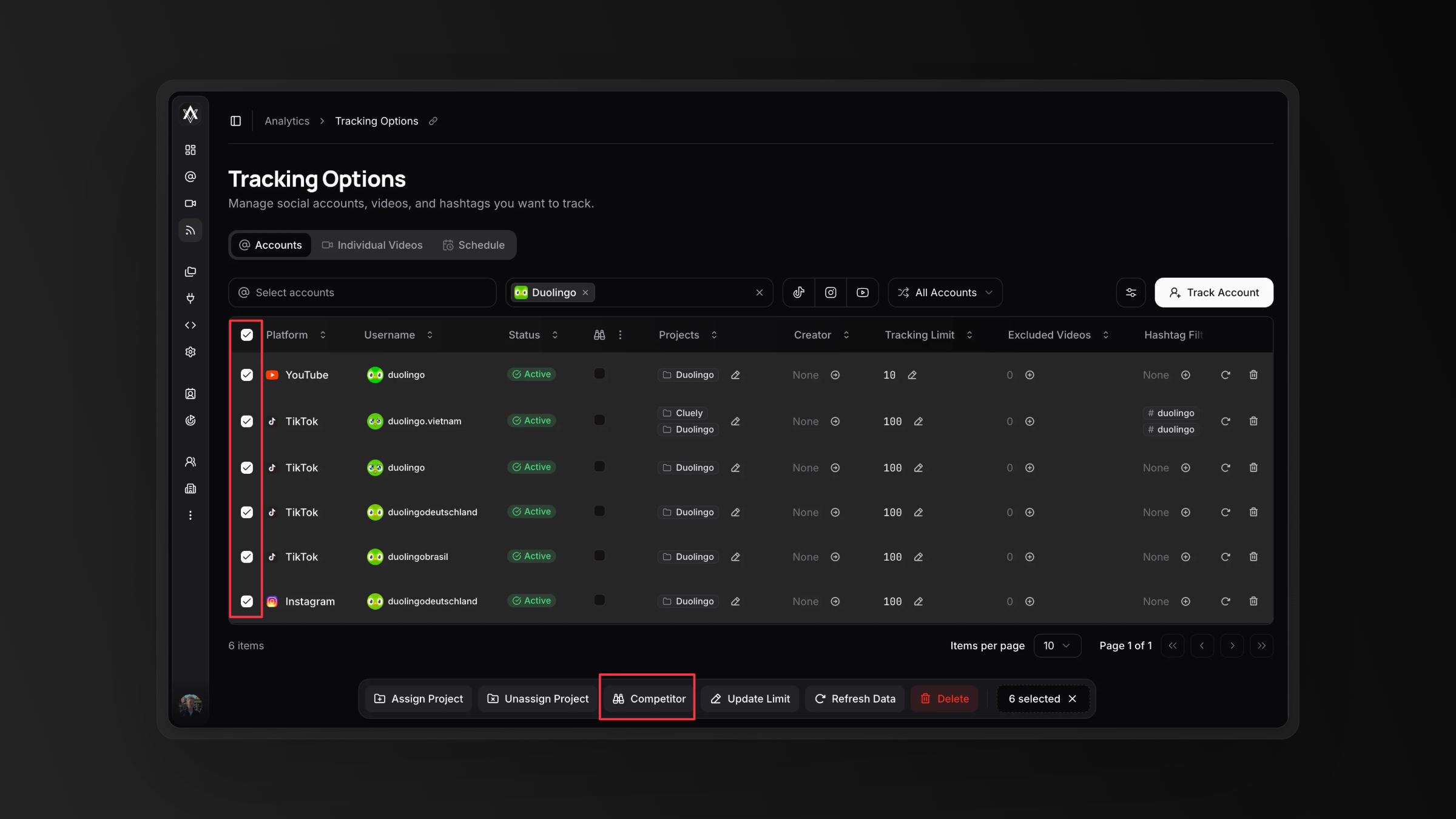
If you've been tracking accounts before this feature, you can easily mark them as competitors. Head to your Tracking > Accounts page and you'll see a new Competitor column with a checkbox for each account.
Simply check the box to mark an account as a competitor. The change takes effect immediately.
Need to update multiple accounts at once? Select the accounts you want to update using the row checkboxes, then use the Competitor action in the floating bar to mark them all as competitors (or remove competitor status) in one go.
For new accounts
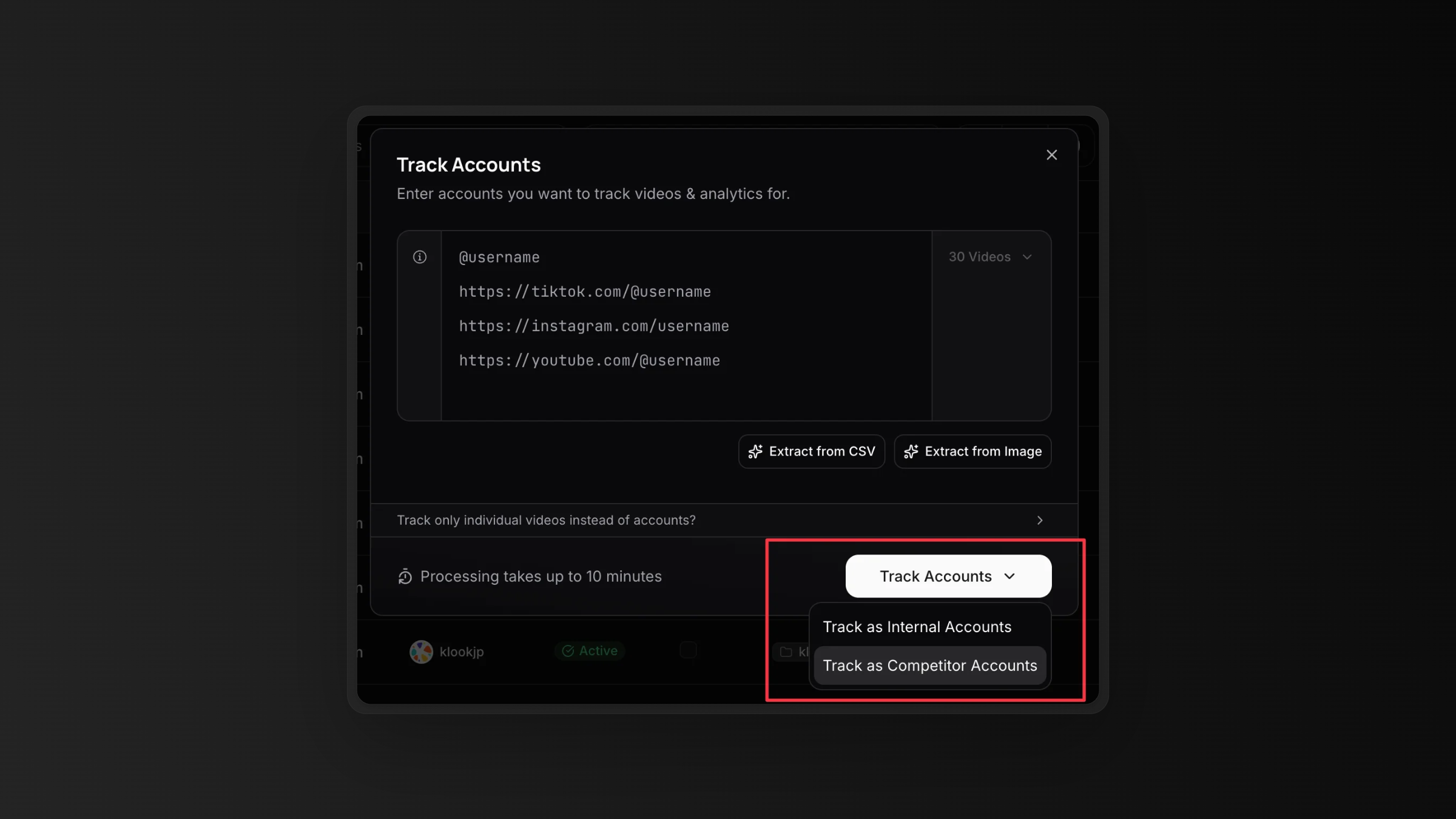
When adding new accounts to track, you can now mark them as competitors right from the start. This way your analytics stay clean from day one.
Viewing your data
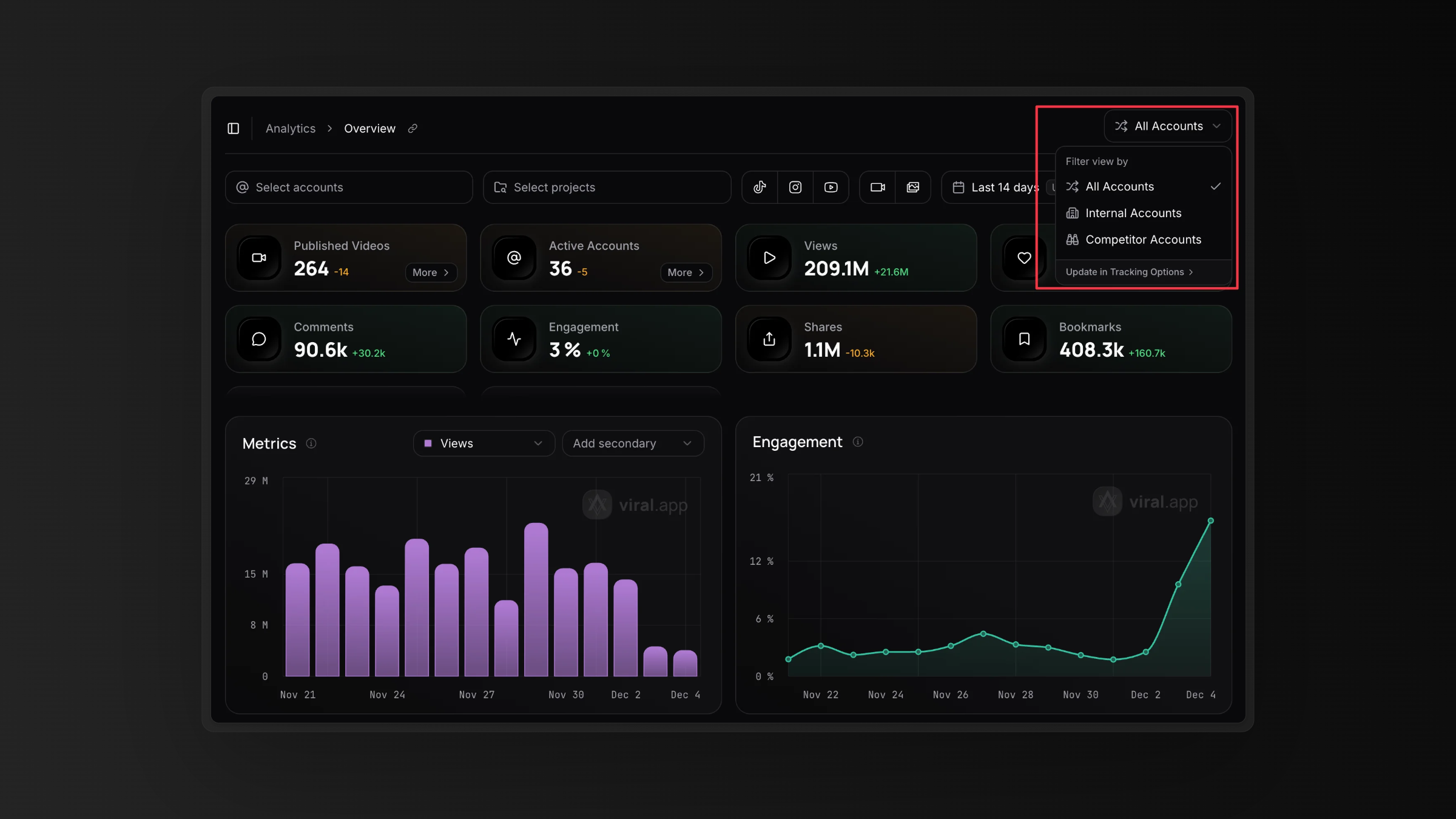
Once you've set up your competitor flags, you can switch between viewing internal content and competitor content using the toggle in the page header.
- Internal: Shows only your own content (accounts not marked as competitors)
- Competitor: Shows only competitor content
This filter applies across your entire analytics:
- Overview charts and KPIs
- Video lists and metrics
- Account performance data
- All exports respect your current view
No more mixing your campaign performance with competitor benchmarks. When you want to analyze your own content strategy, switch to Internal. When you want to study what competitors are doing—like we explored in our TikTok competitor analysis guide—switch to Competitor.
What's next
This is just the foundation for competitive analysis features. Combined with our engagement metrics tracking and analytics reporting, you now have a complete picture of how your content performs relative to the competition.
Ready to clean up your analytics? Start tracking today →
Have questions? Reach out to us at support@viral.app