| Video age | Scheduled refresh cadence |
|---|---|
| Less than 60 days | Every scheduled sync slot |
| 60-119 days | Every 2 days, at the workspace's first sync slot of the day |
| 120+ days | Every 7 days, at the workspace's first sync slot of the day |
Account tracking
Track the accounts and videos that power your analytics, Creator Hub reporting, and payout workflows.
Tracking is the first step in viral.app. Before you review analytics or calculate Creator Hub payouts, add the accounts and videos that viral.app needs to follow.
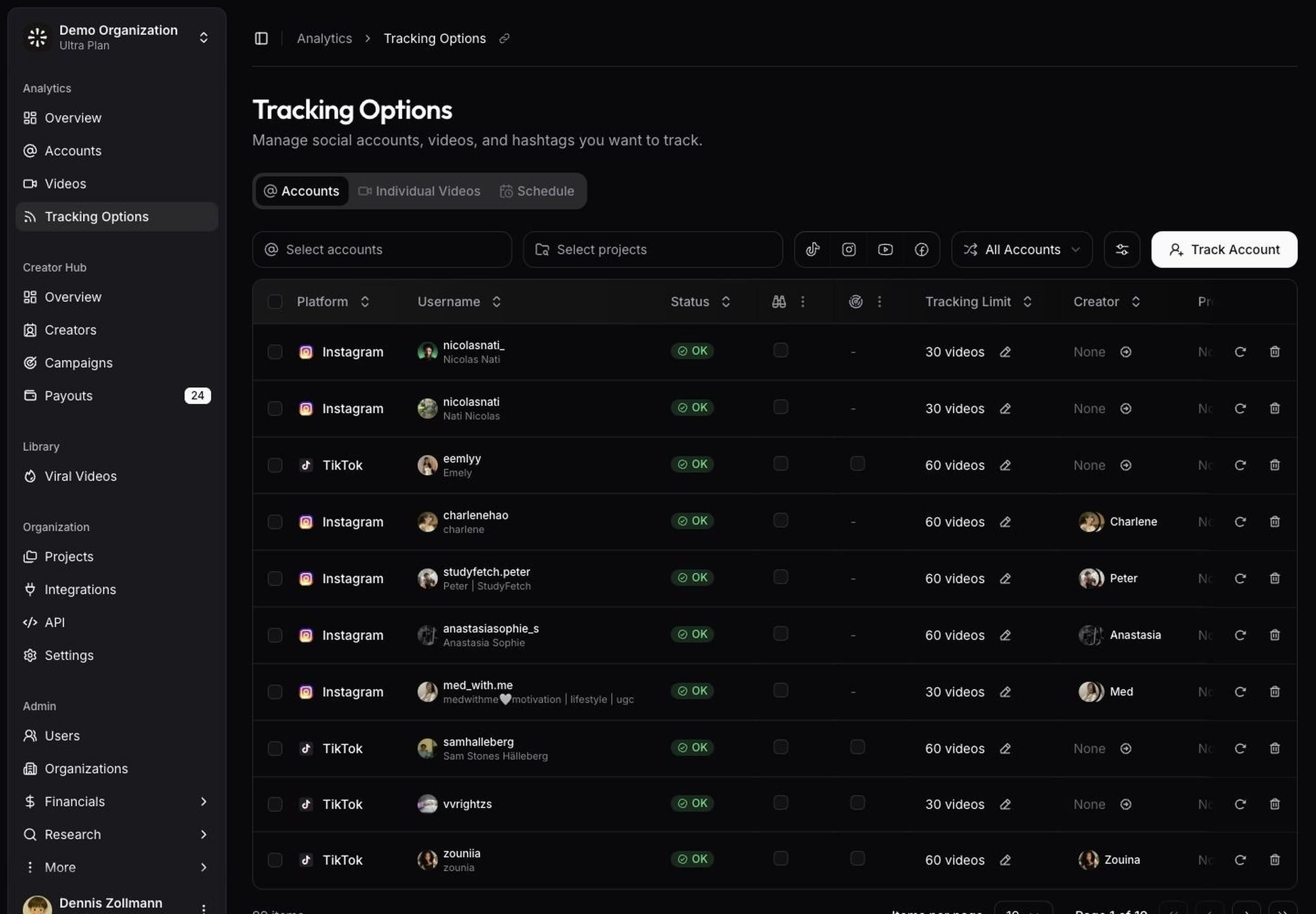
Open Tracking Options to track creator accounts, add individual videos, and control when data refreshes.
Track accounts
Use account tracking when you want viral.app to follow a creator profile over time. Account tracking works well for ongoing creator programs, ambassador accounts, competitor monitoring, and campaigns where creators publish more than one video.
To add an account:
- Open Tracking Options.
- Select
Track Account. - Choose the platform and enter the account username or URL.
- Set the tracking limit for the account.
- Add project or creator settings when they apply.
To add accounts while you browse, install the viral.app Importer Chrome extension. It lists the accounts and videos linked on the page you are viewing and imports the ones you select, with the same limits and tags.
The tracking limit controls how many of the account's latest videos viral.app keeps active for analytics. Smaller limits keep the account focused on recent content. Higher limits are useful when you need a longer history.
Snapchat accounts support limits of 10 or 30 (plus Pause): Snapchat's public surface only exposes an account's most recent Spotlights, around 29, so higher limits would reserve plan capacity the sync can never fill. Requests for a higher or unlimited Snapchat limit are stored as 30.
If your plan includes unlimited video tracking, videos discovered through tracked accounts do not consume your Tracked videos plan limit. Individually tracked videos still count as tracked videos.
How tracking limits use plan capacity
Video tracking plan usage is based on the limit you choose, not the number of videos the account has posted. If you set an account to track its latest 100 videos, 100 counts against your Tracked videos plan limit. That is true even if the account has only posted 10 videos so far.
To keep usage tight, you can lower account limits when they are higher than the number of relevant videos. Teams that do this often can automate limit updates through the API reference. If you need older videos to remain available after they leave active tracking, use historical data. If you want tracked accounts to be the main limit instead of per-account video slots, use unlimited video tracking.
Refresh schedule
viral.app refreshes tracked data on a schedule. Open Schedule to review or adjust refresh times for your workspace.
Scheduled refreshes use UTC. A refresh can take up to 60 minutes to finish after the scheduled start time. For daily reporting, we recommend at least one refresh late in the day, such as 21:00, 22:00, or 23:00 UTC. Plans with extra hourly sync slots can refresh as often as once per hour.
For videos, the scheduled refresh cadence also depends on how old the post is. On plans with up to 5 sync slots per day:
Plans with 6 or more sync slots per day (including hourly sync slots) concentrate the extra frequency on the freshest content:
On these plans, accounts whose latest post is less than 7 days old are checked at every sync slot, so new posts from active creators are picked up quickly. YouTube account refreshes run up to twice a day on these plans.
Use manual refresh when you need fresh data before the next scheduled sync. Manual refreshes can take up to 10 minutes. They use refresh credits based on the number of tracked videos refreshed.
Account refreshes use 3 credits per tracked video, rounded up per account. Individual videos use 3 credits each. Unlimited account refreshes use 900 credits. An account or video anyone on your team refreshed in the last 10 minutes isn't refreshed or charged again. See Extra credits for other billed extra usage.
Track individual videos
Use Individual Videos when you only need specific posts. This works well for one-off creator submissions, ad references, launch content, or posts that do not belong to a tracked creator account.
Individual videos are useful when you choose the exact post to track. If a video fails to sync, use Retry sync from the videos table after you confirm the URL and platform are correct.
Platform notes
viral.app tracks Reels. Stories are not tracked: Instagram shows their views and reactions only to the account owner, nothing about them is public, and a story disappears after 24 hours. Feed videos and carousel posts are not tracked either, because Instagram's data returns no play counts for them. If you add one as an individual video, it shows as Unsupported.
For a reel that is also shared to Facebook, Instagram itself shows the combined Instagram and Facebook views, likes and comments. viral.app reports the Instagram share only, so the number on Instagram can be higher than the one in your analytics for those reels. When a creator hides like counts, viral.app shows likes as not available rather than zero. A collab reel appears under the account that posted it, not under its co-authors.
Trial reels are shown to non-followers first and do not appear under the account until the creator shares them with everyone. Account tracking picks up a trial reel on the day it is shared. From then on its total views and its publish date are correct, but the views from the trial days are booked together on the publish date rather than day by day. To follow a trial reel from its first day, track it as an individual video.
viral.app tracks Reels from public Pages. Likes are all reactions combined, and saves are not available because Facebook does not publish them. Private Pages cannot be tracked.
YouTube
viral.app tracks Shorts, both through channel tracking and as individual videos. Long-form videos are not supported. Private, unlisted and age-restricted videos cannot be tracked.
TikTok
Videos and photo carousels are both tracked. Some accounts and videos are restricted to regions that viral.app cannot access and cannot be tracked. Private accounts cannot be tracked.
Snapchat
viral.app tracks recent Spotlight snaps; older snaps are not backfilled. Likes are Snapchat's hearts. Stories are not tracked, for the same reason as on Instagram.
More tracking options
Unlimited video tracking
If your plan includes unlimited video tracking, videos discovered through tracked accounts do not consume the Tracked videos limit. In that setup, Tracked accounts becomes the main plan limit for account-discovered content.
Set an account to Unlimited when you want viral.app to track all videos for that account. Videos you add through individual video tracking still count against Tracked videos.
Pause tracking
Use Pause Tracking from an account's row menu, or on several selected accounts, when you no longer want viral.app to pick up new videos from them but still want to keep the existing tracked videos and reporting history. Nothing syncs for a paused account, and it does not count toward your plan limits.
To start again, use Resume Tracking and pick how many of the latest videos to track. A resumed account counts toward your plan limits again.
Pause tracking is available when your plan includes historical data, the data retention add-on available with Ultra plans and above.
Delete accounts and videos
To remove an account and its videos from tracking entirely, use Delete Account from the account's row menu. Use Delete Video for an individually tracked video. Historical data for deleted accounts and videos is cleared regularly.
Tags and rules
Tags help you organize tracked videos after they enter your workspace. Use them for campaigns, markets, creative angles, product lines, account groups, and any reporting slice your team reviews often.
Open Tags to create custom tags, review project tags, and manage account assignments. Use the Tags column on Videos to add or remove tags manually.
When the same decision should happen automatically, create a tag rule. Metric rules can tag videos by metadata such as platform, content type, hashtags, captions, views, or engagement rate. See Tags for the full workflow.
Exclude videos
Use exclusions when a tracked account contains a post that does not belong in analytics. Excluded videos stay out of dashboards, exports, and campaign metrics while the account remains tracked. A video you only track individually cannot be excluded: delete it with Delete Video instead.
You can remove an exclusion later. The video appears again after the next refresh if it still matches the account tracking settings.
What to do next
After you track the right accounts and videos, open Analytics Overview to review performance. If you run creator campaigns, add creators in Creator Hub and connect their tracked accounts to campaign records. For planning context, compare the UGC analytics overview with the campaign management workflow.