| Price | Free. Needs a viral.app account on an active plan or trial |
| Browser | Chrome 120 or later, on desktop |
| Platforms | TikTok, Instagram, YouTube, Facebook and Snapchat |
| Imports | Accounts and single videos, up to 100 per import |
| Permissions |
|
| Developer | FMD Labs GmbH, the company behind viral.app |

The viral.app Importer is a free Chrome extension that finds the TikTok, Instagram, YouTube, Facebook and Snapchat accounts and videos linked on the page you are viewing and adds the ones you select to your viral.app tracking. It works on a creator's profile, on a single video, and on any web page that links to social accounts, such as an agency roster or a competitor's link-in-bio page. It needs a viral.app account on an active plan. The 7-day free trial is enough.
Install it: add the viral.app Importer to Chrome from the Chrome Web Store, where version 0.1.0 went live on October 6, 2026.
If you are looking for a TikTok downloader, or a way to use TikTok in a desktop window, this is the wrong extension. It also does not overlay follower counts or engagement rates on the TikTok or Instagram page, as analytics extensions do. The Importer only adds accounts and videos to a viral.app tracking list, so you stop pasting profile URLs into a dialog one at a time. The numbers then live in your viral.app dashboard, per video and over time.
What the Chrome extension does
Finds accounts and videos on any page
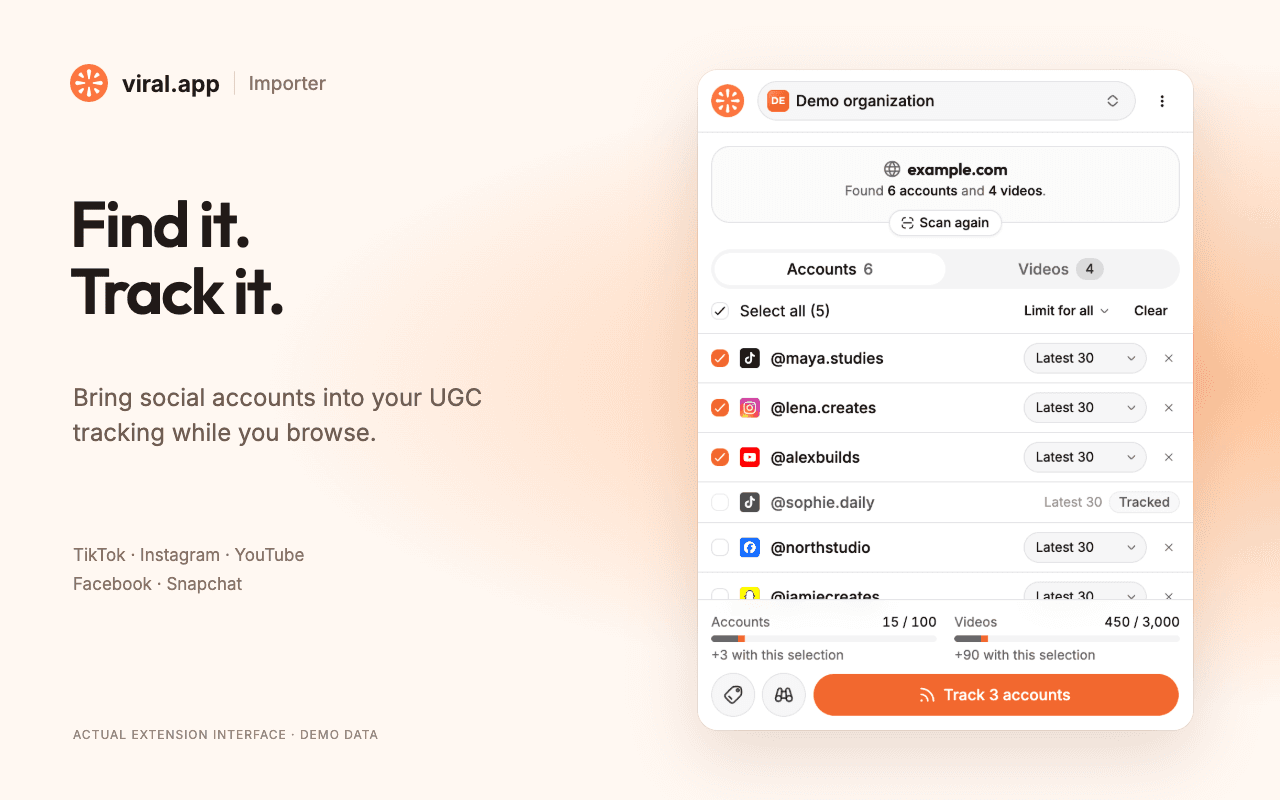
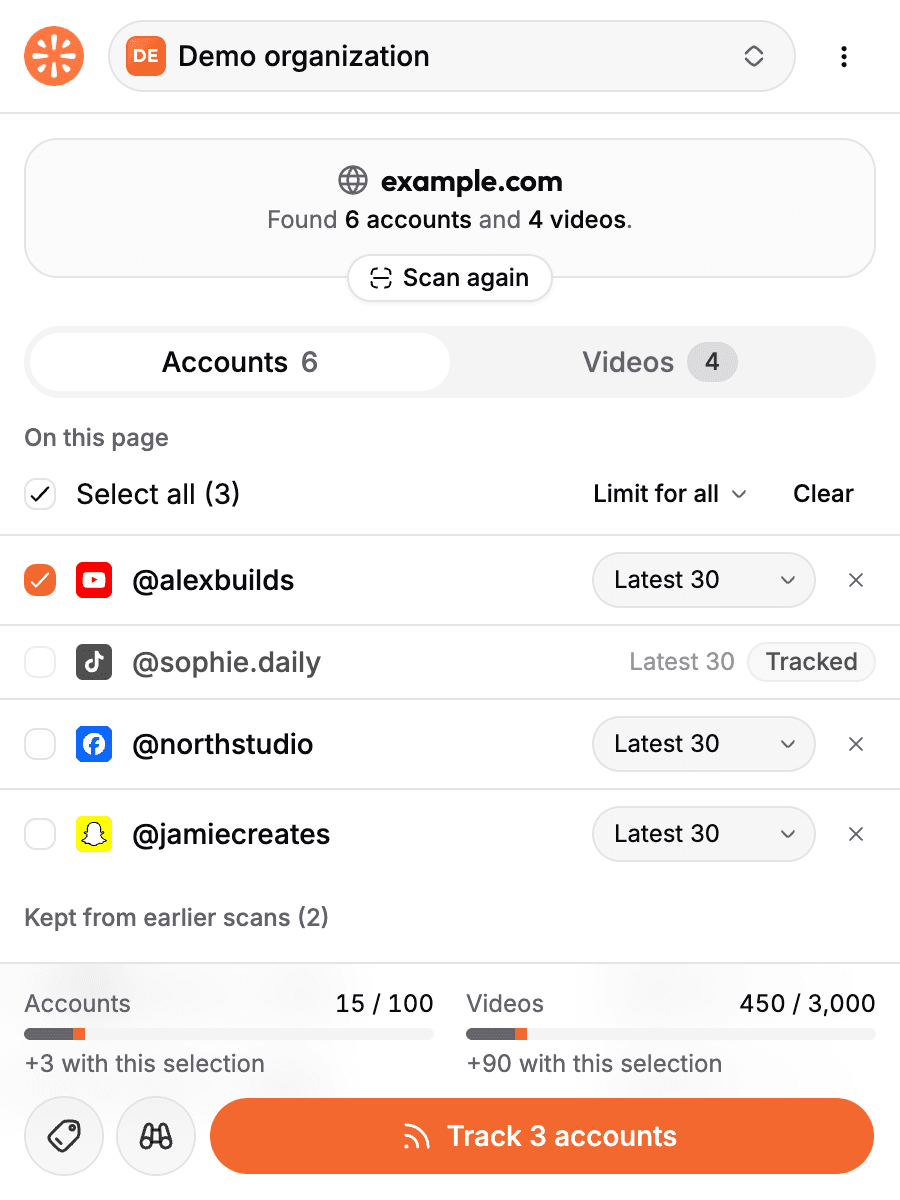
Open it on a profile, a video or a page full of creator links. It lists every supported account and video the page links to.
Shows what you already track
Accounts and videos your organization tracks carry a Tracked badge and cannot be added twice.
Imports with limits and tags
Set how many videos to follow per account, add tags, or mark the batch as competitors before it reaches your dashboard.
Once an account is imported, viral.app follows its latest videos and keeps their views, likes and comments up to date in your analytics dashboard. The extension is a shortcut. You can do the same by hand under Tracking Options, as the account tracking docs describe.
How to install and use the extension
Add it to Chrome
Open the Chrome Web Store listing and click Add to Chrome. Pin the Importer icon to the toolbar so it stays one click away.
Sign in with viral.app
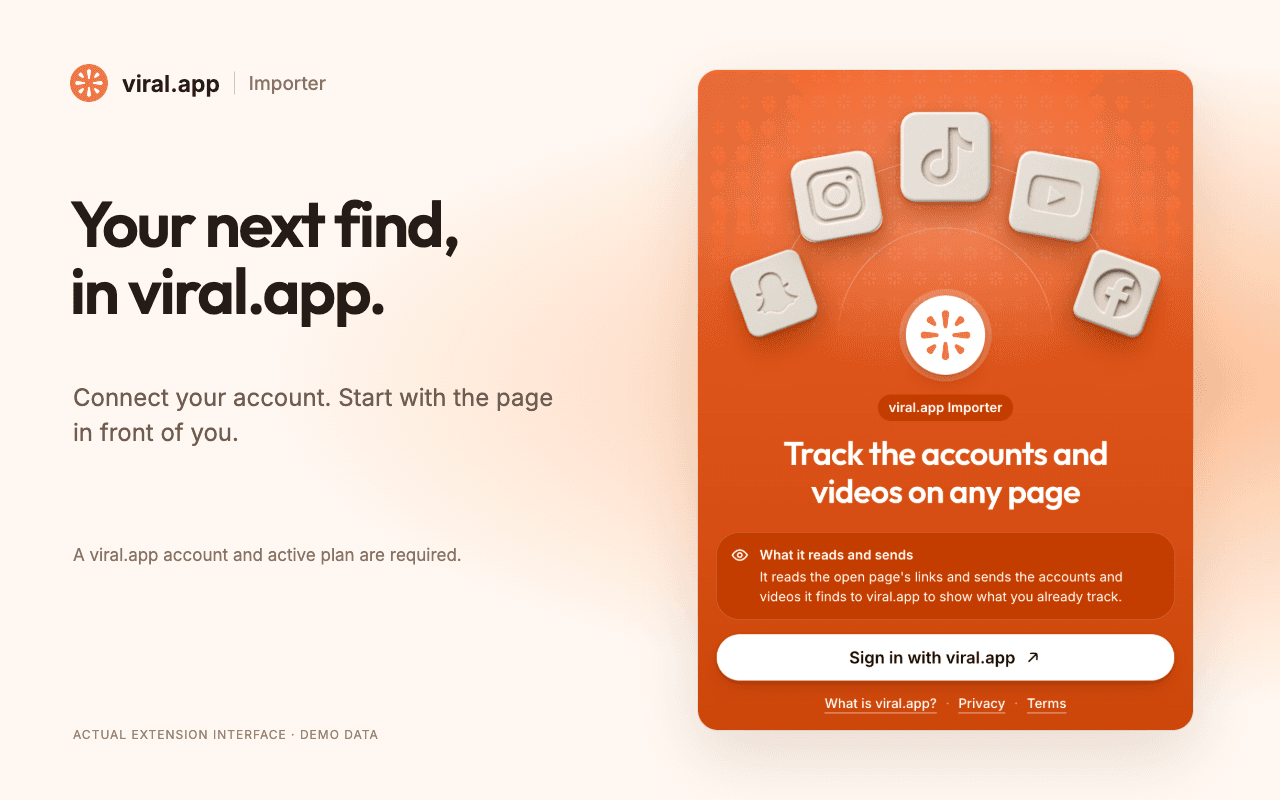
Click the icon, then Sign in with viral.app. A tab opens where you sign in and choose which organizations the extension may add to.
Open a page and click the icon
The Importer scans the page's links and lists what it finds in two tabs, Accounts and Videos. Nothing is selected for you.
Select what to track
Tick the rows you want. For accounts, choose a limit such as Latest 30. Add tags or turn on competitor mode if you need them.
Click Track
The import keeps running if you close the popup. The summary links to Tracking Options in your dashboard.
First data can take up to 10 minutes to show up in viral.app after an import.
Supported platforms and link types
The scan reads the links on a page, plus embedded Instagram posts and TikTok embeds. Embedded YouTube players are not picked up. It does not read the page's text, so a handle that is only written out, with no link behind it, is not found.
A few rules decide what ends up in the list:
- On a profile or video page, that account or video is always the first row. On a TikTok or Snapchat video page, the creator's account is listed with it. YouTube, Instagram and Facebook video URLs do not name the creator, so open the profile to add the account.
- A creator whose videos the page links to is also listed as an account, marked "via video", so you can follow the account and not only the one post. This works where the link names the creator: TikTok, Snapchat and Instagram profile grids.
- Short links and share links are listed right away and resolved to the real video when you import.
- One page adds at most 500 accounts and 500 videos to the list.
A link tells the extension the format, not always the content. An Instagram /p/ link can be a photo post, which viral.app does not track. Each row is checked at import. The ones that cannot be tracked, such as private or unsupported posts, are reported with the reason, and the rest go through. On YouTube, viral.app tracks Shorts and not long-form videos, so select a watch?v= link only when you know it is a Short.
Some pages cannot be scanned at all: the Chrome Web Store, the browser's own pages and PDF files. YouTube channel URLs without a handle (/channel/, /c/, /user/) are not recognized as accounts either.
Track the account or a single video?
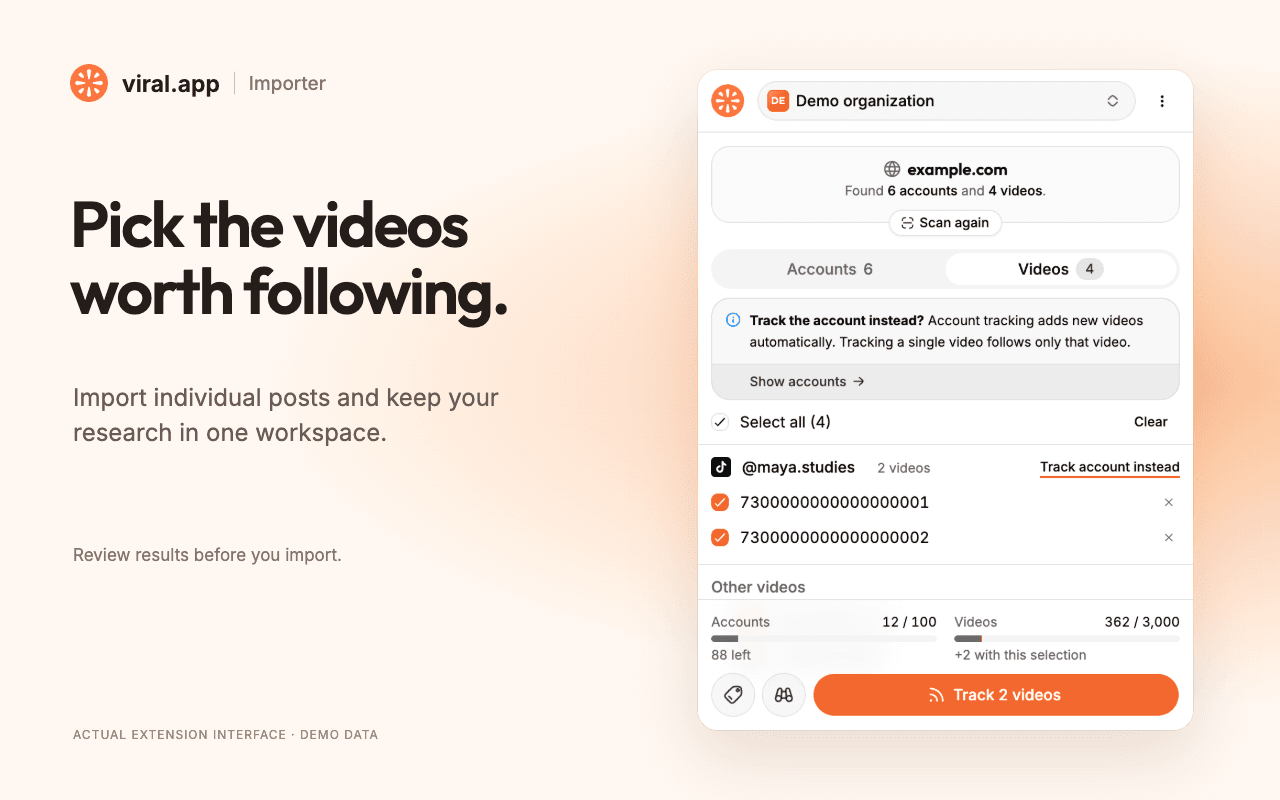
Tracking an account follows the creator: new videos are added automatically, up to the limit you set. Tracking a single video follows only that post. The Videos tab groups videos by creator and offers "Track account instead" for each one, which swaps that creator's videos for the account.
The limit decides how many of an account's latest videos stay in active tracking. Every plan offers Latest 10 to Latest 2,000, and the default is Latest 30. Plans with unlimited video tracking add Unlimited and default to it. Snapchat accounts stop at Latest 30. "Limit for all" sets every row at once.
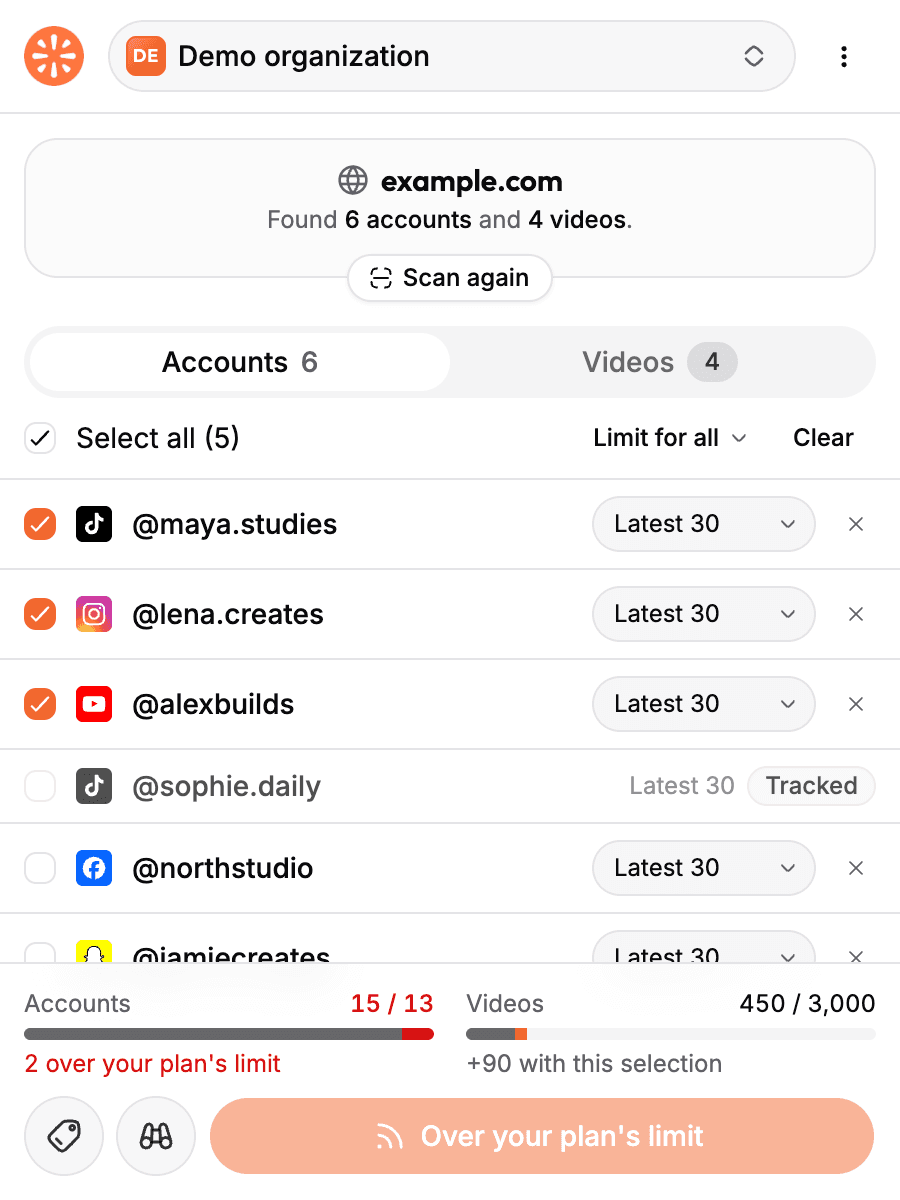
On plans without unlimited video tracking, usage follows the limit, not the number of videos an account has posted: three accounts at Latest 30 reserve 90 tracked videos. Two meters at the bottom of the popup show your tracked accounts and tracked videos with the current selection added. If the selection goes over your plan, the Track button reads "Over your plan's limit" and stays disabled. Whether you can track single videos at all also depends on your plan.
Tags, competitors and organizations
Three settings apply to the whole batch you import.
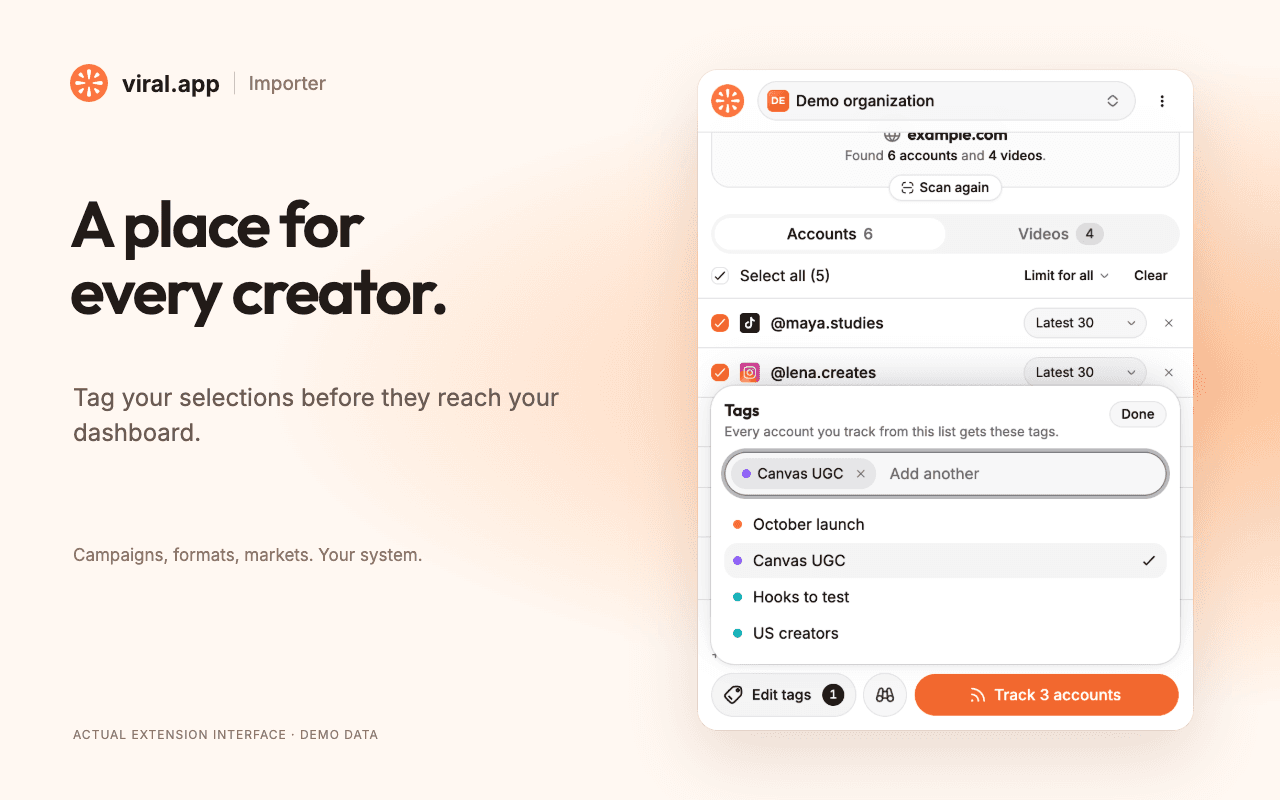
Tags. Every account or video in the import gets the tags you pick, so a new batch lands in the right campaign or market from the start. You search your organization's tags in the popup and, if your role allows it, create new ones there.
Competitor mode. The binoculars button marks the batch as competitors. Competitor accounts are tracked like any other, but they stay out of your organization's totals, which keeps your own reporting clean. If you are setting this up for the first time, read how competitor tracking works and what to look for in a TikTok competitor analysis.
Organizations. The picker at the top chooses the organization the import goes into. Agencies with one organization per client switch here. The extension only reaches the organizations you allowed at sign-in, and only those where you have the member role or higher. "Change access" in the account menu changes that selection.
You can also collect across pages. Rows you have checked stay in the list when you move to another page, under "Kept from earlier scans", while unchecked rows are dropped. Open five creator profiles one after another, tick each, and import all five in one go.
Privacy and permissions: what the extension reads and sends
The scan runs in your browser. The page's HTML, its text and its unrelated links never leave it. What goes to viral.app are the identifiers of the accounts and videos the scan found, so the popup can show which ones you already track.
While you are signed out, nothing is scanned. While the popup is closed, the extension cannot read any page. It asks Chrome for activeTab, scripting and storage, plus access to viral.app itself, and has no standing access to TikTok, Instagram or any other site. activeTab covers the current tab only, and only after you click the extension's icon.
Sign-in happens in a viral.app tab, so the extension never sees your password, and it never asks for a TikTok or Instagram login. You can sign out from the account menu or revoke the extension's access in your security settings. The privacy policy has the full description under "viral.app Importer browser extension".
Who the extension is for
It is for the people who run creator and influencer programs: brand marketers, UGC teams and agencies. Creator accounts cannot import.
- Canvas UGC programs. When creators run accounts dedicated to your brand, every new creator means new accounts to add. Open the roster page, select them, tag them with the campaign and import. The guide to tracking creators in high-volume programs covers what to do with them next.
- Competitor monitoring. Open a competitor's profile, or a page that lists their creators, and import with competitor mode on.
- Content research. Save single videos from an article or a newsletter as tracked videos, tagged by hook or format, to see how they keep performing.
- Agencies. Keep one organization per client and send each batch to the right one from the picker.
Requirements and limits
- Chrome 120 or later, on desktop. The Importer is not in the Firefox or Edge add-on stores yet, and there is no Safari version.
- A viral.app account with an active plan. The extension is free. The organization you import into needs an active plan or a running trial, and you need the member role or higher in it. Viewers and creator accounts cannot import.
- Your plan's limits apply. Imports count toward tracked accounts and tracked videos exactly as they do in the dashboard.
- Links only. A roster written as plain text, or kept in a spreadsheet, yields nothing.
- 500 accounts and 500 videos per page. The popup says so when a page had more.
- 100 rows per import. One import takes at most 100 accounts or 100 videos. Split a longer roster into several imports.
- English only. The popup is in English whatever your browser's language.
Frequently asked questions
Yes, the extension is free to install. It needs a viral.app account on an active plan, and the 7-day free trial is enough. What you import counts toward your plan's tracked accounts and tracked videos.
Partly. It shows no stats on the TikTok or Instagram page itself. It adds the account to viral.app, which then records each video's views, likes and comments over time, for influencer, UGC and competitor accounts alike.
Yes. The viral.app Importer adds a TikTok account to your viral.app tracking from the account's profile page, or from any page that links to it. viral.app then follows the account's latest videos and their views, likes and comments. It does the same for Instagram, YouTube, Facebook and Snapchat.
Chrome 120 or later on desktop, installed from the Chrome Web Store. It is not in the Firefox or Edge add-on stores yet, and there is no Safari version.
Yes. It recognizes account and video links of all five platforms. viral.app tracks TikTok videos and photo carousels, Instagram Reels, YouTube Shorts, Facebook Reels from public Pages and Snapchat Spotlight snaps.
No. You sign in with your viral.app account only. The extension reads the links of the page that is open in your browser and never asks for a social media login.
The platform, username and video ID of the accounts and videos it finds on the page, to check which ones you already track, and the rows you select when you import. The page's HTML, text and unrelated links are not sent, and nothing is scanned while you are signed out. Details are in the privacy policy.
No. It only adds accounts and videos to viral.app tracking. To get the comments of a TikTok video as a CSV file, use the free TikTok Comment Exporter.
It reads links, not text, so handles that are only written out are not found. It also cannot scan the Chrome Web Store, the browser's own pages or PDF files, and it does not take YouTube channel URLs without an @handle as accounts. If you are signed out, it does not scan at all.
Yes. When you sign in you choose which organizations the extension may add to, and the picker at the top of the popup switches between them. Change access in the account menu changes the selection later.
Sign out from the extension's account menu, or revoke its access in your viral.app security settings. Removing the extension or revoking access does not delete accounts and videos you have already imported.
First data can take up to 10 minutes to show up in viral.app. After that, the account refreshes on your organization's tracking schedule.
Add the creators you find to your tracking
Install the Importer, open a creator's profile, tick the account and click Track.
Get it: viral.app Importer on the Chrome Web Store. No account yet? Start your free trial of viral.app first.